Home  >  Products  >  Converting & Encoding Software  >  TMPGEnc MovieStyle

TMPGEnc MovieStyle. Your Movies. Your Digital Lifestyle.
TMPGEnc MovieStyle boxshot

TMPGEnc MovieStyle

Your movies. Your digital lifestyle.


MovieStyle gives you the freedom to convert your video clips for your portable and HD digital devices without the hassle of complex video tools or multiple applications.


Simply drag and drop your video files to easily convert them for 11 popular digital devices. Included tools and features help you organize, enhance, and transfer your video with just a few clicks!

Try and Buy

Download the Trial Version:
Download Trial

FREE

Buy the Full Version:
Buy Now

$39.95

 
Overview
 
Features
 
System Requirements
 
Specifications
 
Screenshots
 
Features At-A-Glance:
  • Easy to use for beginners
  • Converts most video file formats
  • Support for 11 different portable and HD devices!
  • Use the pre-made converting templates or use custom settings!
  • Drag 'n Drop converting
  • Quick Encode feature allows you to convert your movies without opening the application!
  • Audio-only output option
  • Karaoke Mode and Key Changer settings
  • Creates high-quality DivX® video
  • TransManager helps you easily transfer and organize your videos
  • Folder Monitoring option
Feature Ratings What's this?
Ease of Use 5 stars
Converting Options 4 stars
Editing Tools 0 stars
Burning Capability 5 stars
HD Features 5 stars

Great With:

1.) Drag and Drop Converting

MovieStyle's sleek and intuitive interface makes it easy to start converting your video clips for your favorite device! To convert your video, simply select your device, then drag and drop your video file into the drop area. That's it! MovieStyle will automatically start converting your video.

Easy drag and drop converting!

2.) Convert For 11 Portable and HD Devices

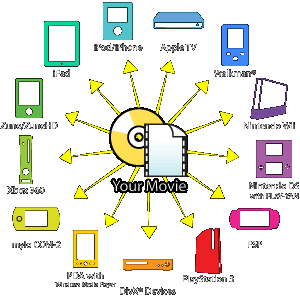
MovieStyle can convert your video for use on these portable and HD devices. Whether you want to take your videos on the go with your iPhone, or watch them in your home theater on your PlayStation 3 at 1080p, we've got you covered.

Convert for these devices: iPod, iPhone, Apple TV, Wii, Nintendo DS with PLAY-YAN, PSP (Playstation Portable), Playstation 3, DivX®, PDA's with Windows Media Player, Sony mylo COM-2, Xbox 360, and Zune.

3.) Import Formats

You've probably got a lot of video files on your computer, and they're probably in lots of different formats. Not to worry! MovieStyle can import many widely used formats such as QuickTime, Windows Media Video, and more.

You can even import a DVD (copy-protected DVD's cannot be imported), or your DVD-VR and DVR-MS (Windows Media Center) recordings!

For HDV and Everio camcorder users, your video files can also be imported with no problem!

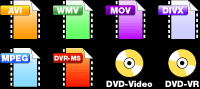
Import Formats: AVI, MPEG, MPEG4, WMV, QuickTime, H.264, DivX®, DVD-Video, DVD-VR, DVR-MS (Windows Media Center recording), Everio (JVC HDD camcorder format)

4.) Quick Encode Feature

MovieStyle is already fast and easy to use, but when you activate the Quick Encode feature, you can convert your video without even opening the MovieStyle application!

Simply right-click on a video file in Windows, select a device, and MovieStyle will automatically convert your video! How's that for fast?

Quick Encode screenshot

5.) Drop Folder

With the Drop Folder feature, you simply specify a folder for MovieStyle to monitor. When you save or move a video clip to that folder, MovieStyle will automatically convert it for the device you specified. (The MovieStyle application must be open for the Drop Folder to work.)

Drop Folder image

6.) TMPGEnc TransManager™

Once you've converted your video, use the TMPGEnc TransManager™ to help manage your video library and transfer them to connected devices. Link it with your iTunes library folder or to a connected device such as a PSP or Sony mylo COM-2 for easy syncing!

TMPGEnc TransManager™

7.) Preview Function

Sometimes you may not be sure if you want to convert your videos in High Quality mode or Standard Quality mode. So what can you do? Use the Preview function!

The Preview function will let you see what your video will look like before you convert. It's a great way to verify that the picture quality and resolution are up to your standards.

Preview screenshot

8.) Cinema Mode

Cinema Mode converts your video to play at 24p (24 frames per second, progressive scan), which results in smoother, film-like playback.

Why is this? Some videos were origianlly created to play at 24p, but since the NTSC television broadcast standard is 29.97fps (interlaced), additional frames may have been inserted to make the video broadcast compliant. Using Cinema Mode will restore the video to its original framerate of 24p and deinterlaces the frames.

Cinema Mode image: 29.97fps to 24fps Cinema Mode image 2: an illustration of how Cinema Mode fixes the frame structure.

9.) Audio Only Output

Turn your video files into audio files with the Audio Only output feature (only available for certain devices).

This is a great option for when you can't watch your video. Listen to your newly created audio file while you jog in the park, drive on the highway, or even at work!

Audio Only

10.) Karaoke Mode

Like Karaoke? Or maybe you want to redub a video? With Karaoke Mode enabled, the vocals from your video are cancelled out, leaving you a clean slate to provide your own vocals.

*Adobe Flash Player may need to be installed in order to view the example movies to the right. You can download it HERE.

11.) Pitch Changer

The Pitch Changer settings allow you to change the audio pitch of your video. Great when used in conjunction with Time Stretch feature to correct high or low-pitched voices.

*Adobe Flash Player may need to be installed in order to view the example movies to the right. You can download it HERE.

12.) Time Stretch

Convert your video to play up to 1.5 times faster or up 0.5 times slower with completely understandable audio. Don't have a lot of time? Watch a 1 hour video in about 40 minutes!

Slowing down the video can help if you are studying a new language and need to examine the sounds and pronounciation.

Since using Time Stretch can distort the audio pitch, you can use the Pitch Changer settings to correct it.

*Adobe Flash Player may need to be installed in order to view the example movies to the right. You can download it HERE.

System Requirements
PC IBM PC compatible
OS Windows XP SP2 (Home, Pro, Media Center)
Windows Vista / Vista SP1 (Ultimate, Home Premium, Home Basic, Business)
(Operation on 64-bit editions is not officially supported. Use on a 64-bit OS is at your own risk.)
CPU Pentium III 1.0GHz or higher
(Providing SSE extension support)
(SSE extended instruction is necessary)
RAM 256MB or more
HDD space 40MB for the program
+ enough space for the input / output files
Screen resolution 1024 × 768 or more
HDD format NTFS recommended
(FAT32 is possible but limits the maximum file size to 4GB)
Others DirectX 9 or higher
Internet connection required for periodic license validation and updates
Microsoft Visual C++ 2005 SP1 (may be required for DivX output). Download it HERE.
Recommended hardware specifications
CPU Multi-processor, Intel HT technology, SSE3, Core 2 Duo/Quad, up to 4 logical CPU supported
Memory 1024MB or more
Picture resolution 1280 x 1024 or more / Full-color output

This software uses a license verification system (L.E.A.P.System) which requires Internet Connection.
After the first installation of the software, the license validation (activation) will be processed when starting the program. And it will also be processed periodically from time to time.
Therefore, the PC using this software must be connected to the Internet.

In environments like universities or companies using LAN, we cannot guarantee that the license verification will be correctly processed due to restrictions that might be set.
*Before purchasing the software, please run some tests with the trial version (which also includes the verification system).

Notice:
We have recently discovered a problem where the DivX® system codec must be installed on your computer to import DivX® files into MovieStyle. This problem does not affect outputting files for DivX® devices.

If you experience any trouble when importing a DivX® file, please download and install DivX® for Windows (codec) found at the DivX® website (http://www.divx.com/).

Our development team is now working on this issue and will provide an update soon so that installing the codec is not required. Thank you for your patience and understanding.

Supported Input Formats
Video formats AVI (uncompressed native, other formats according to the installed codecs)
MPEG-1 System Stream (.mpg) *1
MPEG-1 Elementary Stream (.m1v) *1
MPEG-2 Program Stream (.mpg,.m2p) *2
MPEG-2 Elementary Stream (.m2v) *2
MPEG-2 Transports Stream (.mpg,.m2t HDV) *3
(MPEG YUV 4:2:0 support only)

Windows Media file (*asf;*.wmv)
DVD-Video *4
DVD-VR *5
MPEG-4 file (*.mov;*.mp4;*.m4v;*.3gp;)
QuickTime file (*.mov;*.qt;*.mp4;*.m4v;*.3gp;*.3g2;*.amc)
DivX file (.divx,.avi (DivX codec))
Sony DoVAIO
Microsoft TV record file (.dvr-ms) *6
PV3 file (.dv)*
File importable through VFAPI
Audio formats MPEG-1 Audio Layer II (.mp2)
MPEG-1 Audio Layer II (.mp3)
Dolby® Digital (.ac3) *7
Linear PCM (.wav) (uncompressed native, other formats according to the installed codecs, Extensible supported)
AVI (.avi) recognizable audio
Windows Media file (.wma)
File importable through VFAPI
File importable through DirectShow

Back to Top
Supported Output Target Devices
Target Devices PlayStation Portable
iPod / iPhone (iPod Touch / iPod classic (video) / iPod nano (video))
Zune (30 GB, 4/8/80GB model)
PLAY-YAN (micro included)
mylo COM-2(AVC compatible model)
PDA
Apple TV
PlayStation 3
Wii
Xbox 360
DivX (qMobile, Mobile, Home Theatre, all 720 High Quality support devices)

Back to Top
Functions
Quick Encode When enabled, a MovieStyle option is added to Windows Explorer contextual menus when a movie file is right-clicked. From the menu, a device can be selected, and MovieStyle will automatically convert the file for that device, even if MovieStyle is not open.
Audio output Outputs only the audio part of the source movie file formated to a target device. (not available on all target devices)
Drop folder Moving or outputting a file into a specified folder automatically adds it to the TMPGEnc MovieStyle job list.
Karaoke mode Filters out the voice and leaves only the music.
Key change Shifts the audio pitch higher or lower.
Cinema mode Retreives the original 24 fps of a movie that has been converted for the 29.976 video framerate.
Time stretch Speeds up or slows down the outputted movie while offsetting the audio pitch.
Overdrive Processes the picture in order to reduce the LCD lantency effect on the PSP display.
Automatic source profiling Automatically detects the souce movie characteristics such as resolution, display mode and framerate and chooses the necessary transformation for the target device.
TransManager A tool allowing the management and transfer to devices or media of the converted movie files.
iTunes registration Automatically registers the outputted files to iTunes when the target device is iPod/iPhone or Apple TV.
DVD-Video/VR importation Can import the content of an non-protected DVD-Video or DVD-VR disc.
DVD titles concatenation Groups together in a unique outputted file the different titles from a DVD-Video/VR.
Media Center Edition support Can import the content of non-protected Microsoft TV record files (dvr-ms) generated by Windows Vista or Windows XP Media Center Edition.
Task priority Allows detailed setting of the share of the CPU time given to TMPGEnc MovieStyle. (5 levels, for each foreground and background status)
News Center Receives news and information from TMPG Inc. through a dedicated application.
Do VAIO import Can import the content of the video recorded by the Do VAIO application found in the Sony VAIO computers.
Everio video file import Can read the content of the MOD files generated by the Everio series HDD camcorders from JVC.
Output preview Shows the output just before passing through the encoder.
Finishing task Sets a task TMPGEnc MovieStyle starts when the last of the job is completed such as shutdown, standby, hibernate. (availability depending of the OS/machine configuration)

Back to Top

*1. MPEG-1 VBR files are not supported.

*2. Some files may present an audio gap depending on the capture device and settings used. Please use the trial version to test your capture system first.

*3. Transport stream support has been verified with files generated by the JVC GR-HD-1 and Sony HDR-FX1/HC1 camcorders.

*4. Video sources generated from the TMPGEnc series excepted, we do not guarantee the correct support of all the video generated by a capture device, a DVD recorder, or other. Some files may present an audio gap depending on the capture device and settings used. Please use the trial version to test your capture system first. Partially corrupted video source file may not be imported at all. Copyright protected DVD-Video by CSS or CPRM is not supported.

*5. DVD-VR content importation requires a UDF2.0 compatible pilot and a compatible drive. Standard version of Microsoft® Windows™ cannot copy or process such files. Copyright protected DVD-Video by CSS or CPRM is not supported.

*6. Copyright protected Microsoft TV recorded files are not supported.

*7. Supports Dolby® Digital 1 channel (monaural) and 2 channel (stereo) input to output conversion. Dolby* Digital multichannel audio is supported in the preview. Generated Dolby* Digital audio is for personnal use only.

Notice

Input file
  • Some DVD-Video / DVD-VR recorded VOB or VRO may not be correctly processed depending on their internal structure. (always use the DVD option of the Source Wizard/+Add button)
  • Do VAIO support is limited to Sony VAIO computers with Do VAIO and pre-installed TMPGEnc for VAIO series applications.
    (Some TMPGEnc series software may support Do VAIO files with the appropriate module without any waranty regarding functionnality)
  • Partially corrupted video source file may not be imported at all.

Product specifications may be changed without notice.

Screenshot 01

The Main Window

Screenshot 02

Queue Up Your Files!

Screenshot 03

Preview Window

Screenshot 04

The Source Wizard

Screenshot 05

The Source Wizard - Profile Selection

Screenshot 06

The Source Wizard - Filter Settings

Screenshot 07

TMPGEnc TransManager™

Optimized for Intel Core 2 Extreme processors Optimized for Intel Core 2 Duo processors Main Concept QuickTime Created with CRIWARE Certified Dolby Digital Stereo Creator Officially licensed DivX® video software product